
Why Wiping Your Device Properly Matters:
Your phone or laptop holds more about you than almost anything else you own. Photos, messages, saved passwords, banking apps, work email, and login sessions that stay open without asking for a password. Selling it without wiping it is like handing over your house keys with the front door already open.
The good news is that a proper wipe is not hard. Every modern phone, tablet and computer has a built-in way to erase everything and return to factory settings. It takes a few minutes, plus the time it takes to run.
The UK’s National Cyber Security Centre gives the same basic advice in its guidance for buying and selling second-hand devices back up what you want to keep, then use the device’s own “Erase all content and settings” or “Factory reset” feature. It also warns against any option that keeps your personal files during the erase.
Below is a checklist to do first, followed by the steps for each device type. If you get stuck at any point, bring the device to us at Gadget Corner in Failsworth, and we will help you do it safely.
Before You Wipe: The 7-Point Checklist:
Do these first. Once you erase a device, you can’t undo it.
1. Back up everything you want to keep. Photos, videos, contacts, documents, messages. Use iCloud, Google, a cloud service, or an external drive. Then check that the backup actually opened and contains what you expect.
2. Move your two-factor codes. If your authenticator app lives on this device, move it to your new one before you wipe it, or you could be locked out of accounts.
3. Note which accounts use SMS codes. Make sure those codes will arrive on your new phone or another device.
4. Sign out of your accounts. Apple Account, Google, Microsoft, and any app that ties itself to the device. This is also what removes anti-theft locks.
5. Switch off tracking and locks. Find My on Apple devices, and Find My Device and Google account lock on Android. A locked device is hard for a buyer to use and can hold up a sale.
6. Unpair other gadgets. Smartwatches, wireless earbuds, and Bluetooth accessories should be removed from the device.
7. Remove the SIM and any memory card. Keep them or hand them over separately.
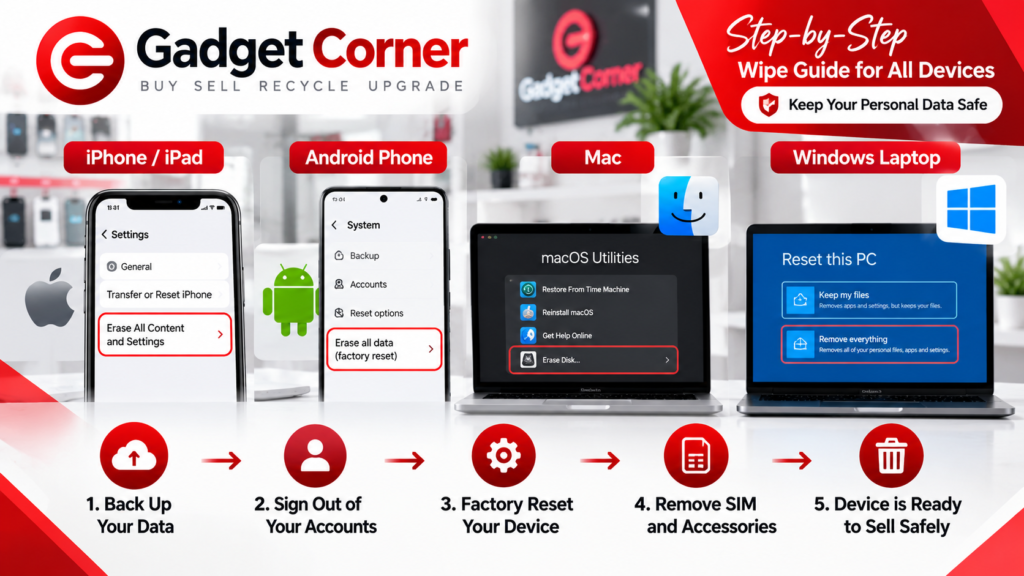
HOW TO WIPE AN IPHONE OR IPAD BEFORE SELLING
These steps follow Apple’s own guidance on erasing your iPhone. Menu names can shift slightly between iOS versions, but the order stays the same.
1. Back up. Use iCloud or your computer to make a backup first.
2. If you have a new iPhone, transfer your data across. Do this before wiping the old one.
3. Sign out of your Apple Account. Go to Settings, tap your name at the top, scroll to the bottom and choose Sign Out. Enter your Apple Account password when asked. This also turns off Find My and Activation Lock.
4. Erase the phone. Go to Settings, General, then Transfer or Reset iPhone, and choose Erase All Content and Settings. Enter your passcode if asked, then confirm.
5. Wait for it to finish. The phone will restart and show the “Hello” setup screen. That is your sign that it has been reset.
6. Remove it from your trusted devices. Apple suggests removing the old device from your list of trusted devices in your account settings.
A tip from the repair bench: do not skip the sign-out step. A phone that is still tied to your Apple Account with Activation Lock on is of little use to a buyer, and it is the most common reason a sale falls through. Still deciding on a price? Our model-by-model guide shows how much your old iPhone is worth in 2026.
HOW TO WIPE AN ANDROID PHONE BEFORE SELLING
Android phones differ by brand, so menu names vary. Google’s Android help page on factory resetting covers the general process and recommends checking your manufacturer’s support site for exact menus on your model.
Before you start, Google suggests making sure you know your Google Account details and your screen lock PIN, pattern or password, that your data is backed up, and that the phone is charged. It also notes the reset can take a while, so give it time.
1. Back up to your Google Account. Photos, contacts and app data can usually be backed up from Settings. Check what is actually included.
2. Remove your Google Account. In Settings, find Accounts (or Passwords and accounts), pick your Google account and remove it. If you use a Samsung account or another brand account, remove that too.
3. Remove the screen lock if you prefer. This is optional, but some people do it so the buyer is not asked for it.
4. Start the factory reset. In Settings, look for System, then Reset options (or General management, then Reset on Samsung). Choose Erase all data (factory reset) and confirm.
5. Let it finish. A factory reset erases all your data, and the phone restarts to the first-time setup screen when done.
If you are unsure of the menu on your handset, search your phone model with “factory reset” on the manufacturer’s site. Or bring it in and we will do it with you. It is also worth checking Google’s list of devices with account access afterwards, and signing out any phone you no longer own.
HOW TO WIPE A MAC BEFORE SELLING
For a Mac with Apple silicon, or an Intel Mac with the T2 security chip, running macOS Monterey 12 or later, Apple’s guide to erasing your Mac describes a simple option called Erase All Content and Settings.
1. Back up with Time Machine or another method.
2. Sign out of Apple services. This includes iCloud, Messages and the App Store if prompted.
3. Open System Settings. Go to General, then Transfer or Reset.
4. Choose Erase All Content and Settings. Enter your Mac login password, and your Apple Account password if asked, then confirm.
5. Wait for the restart. The Mac returns to a factory state and reaches the setup screen.
Older Intel Macs without that option need a different method, such as erasing the disk from macOS Recovery and reinstalling macOS. Apple has a separate guide on using Disk Utility to erase an Intel-based Mac. If that sounds fiddly, it is a job we are happy to take on. Once your Mac is clean, our guide to selling your old MacBook or laptop for cash explains what to expect from an offer.
HOW TO WIPE A WINDOWS LAPTOP BEFORE SELLING
Windows has a built-in reset tool. Menu wording changes a little between Windows 10 and Windows 11, so use this as a general guide alongside Microsoft’s own checklist for before you recycle, sell or gift a Windows PC.
1. Back up your files and note any software licences you want to keep.
2. Sign out of Microsoft services and deactivate paid software such as Office or design tools, so the licence is free to use again.
3. If you use BitLocker or device encryption, check where your recovery key is saved before you begin. Microsoft’s page on how to find your BitLocker recovery key lists the usual places.
4. Open Settings and find the reset option. On Windows 11 this is under System, then Recovery, then Reset this PC. On Windows 10 it is under Update and Security, then Recovery.
5. Choose Remove everything. Do not pick the option that keeps your files. If asked, turn on the Clean data setting so the drive is cleaned fully, not just a quick removal. Microsoft’s Reset your PC page explains each option.
6. Wait for it to finish. It can take a while, and the laptop may restart a few times. Leave it plugged in.
Remember to remove any old Microsoft account from the device list on your account page afterwards, if you can.
SIM CARDS, MEMORY CARDS AND ACCESSORIES
A wipe does not always cover everything you put into the device.
– SIM card. Take it out. It holds your number and can be used on another phone.
– Memory card. Take it out. If you want to reuse it, copy what you need off first.
– eSIM. Phones with an eSIM may need the plan removed in the settings or by your network. Check this with your provider before selling.
– Cases, screen protectors and chargers. Keep your own case. If you are including the original box or charger, say so, as it can affect the offer.
COMMON MISTAKES THAT LEAVE YOUR DATA BEHIND
These are the slip-ups we see most often.
– Selling with Find My or Activation Lock still on. The buyer cannot use it, and you may be contacted months later.
– Skipping the backup. Once a factory reset starts, the data is gone.
– Choosing “keep my files” on a computer reset. It defeats the point if your personal data stays on the drive.
– Forgetting accounts on the device. Email, social media and banking apps can leave sessions open if you simply delete them.
– Leaving the SIM or SD card inside. Easy to forget, and very personal.
– Losing the two-factor app. If your authenticator lived on the old device, you may get locked out of accounts.
– Wiping, then putting your data back by accident. After a reset, do not sign back in on that device.
WHAT IF THE DEVICE IS BROKEN OR WILL NOT TURN ON?
A cracked screen is no problem. If the phone still turns on, you can often wipe with the screen as it is, or use a computer to erase it. If you are not sure whether to fix the screen before you sell, our guide on whether it is worth repairing a cracked phone screen walks through both options.
A device that will not power up at all is harder, because you cannot run the reset. That does not mean you have to bin it. If you are selling a dead or badly damaged phone or laptop, tell us before you hand it over. Ask us in the shop about the best way to handle the data side. If you are weighing whether to repair a broken device or sell it, take a look at our mobile phone repairs, iPad repairs and laptop repairs pages. For a laptop with a smashed display, our guide on whether a laptop with a cracked screen can be fixed explains what a repair involves.
If the device is locked and you have forgotten the passcode, you will normally need to recover it through your account provider. Do not buy tools from unknown sites that promise to bypass locks. Many are scams or can put malware on your computer.
HOW WE HANDLE YOUR DEVICE AT GADGET CORNER
When you sell a phone, tablet or laptop to us at 770 Oldham Road, you do not have to be a tech expert. Here is how it usually works.
1. You bring the device in, with the charger if you have it.
2. We check it in front of you and tell you what we can offer.
3. If you decide to sell, ask us to help you sign out of your accounts and run the factory reset, so you can see it done before you hand the device over.
4. You leave knowing your data is gone.
This is one reason people choose a local shop over posting a phone to a stranger. You can see the wipe happen, and you can ask questions on the spot. You can read more about how selling works on our We Buy Your Tech page.
FAQs:
How do I wipe my phone before selling it?
Back up your data, sign out of your Apple or Google account, switch off Find My or Google’s device lock, then use the phone’s factory reset feature. On iPhone that is Erase All Content and Settings. On Android it is usually found under System or General management, then Reset. Take out the SIM and memory card when you are done.
Is a factory reset enough to remove my data?
For modern phones and Macs, using the built-in erase feature is the method recommended by Apple and the NCSC for people selling a device. The key is to sign out of your accounts first and to avoid any option that keeps your personal files. If you have extremely sensitive information on the device, or you are not sure the reset worked, ask a professional to check.
Do I need to remove my Apple ID or Google account first?
Yes. Signing out removes anti-theft locks such as Activation Lock and Google’s account lock, which would otherwise stop the next owner from using the device. It is also one of the steps most often forgotten.
What happens if I forget to turn off Find My?
The device stays linked to your account, and the buyer may not be able to set it up. If you have already handed it over, you can usually remove it from your account online, or contact the buyer. It is much easier to do before you sell.
Can Gadget Corner wipe my phone or laptop for me?
Ask us when you bring it in. We are happy to help you work through the erase steps so you can see it done.
Not Sure About The Wipe? Bring It To Gadget Corner
If you want a hand backing up, signing out or resetting, come and see us. We will walk you through it and give you a fair cash offer for your phone, tablet or laptop at the same visit.
770 Oldham Road, Failsworth, Manchester M35 9FE
Phone: 0161 681 1111
Email: Gadgetcorner00@gmail.com
Open Monday to Saturday, 9am to 8:30pm. Closed Sunday.
Pingback: Laptop Won't Turn On? Causes and Repair Options | Gadget Corner
Pingback: Sell My Old Tablet in Manchester: iPad and Android Cash Guide - Mobile Phone & laptop Repair Shop
Pingback: How to Get a Fair Quote When You Sell Your Laptop in Failsworth - Mobile Phone & laptop Repair Shop